
Building an AI-Powered WCAG Accessibility Checker in Python
Building an AI-Powered WCAG Accessibility Checker with Python
Accessibility isn’t optional — it’s essential. From ensuring inclusivity for all users to meeting compliance standards like WCAG (Web Content Accessibility Guidelines), developers often face the challenge of testing their applications for accessibility gaps.
But what if AI could make this easier?
In this post, I’ll walk through how I built an AI-powered WCAG Accessibility Checker using Python, Streamlit, and the OpenAI API. The app allows you to paste in HTML, CSS, or JS code snippets and receive instant feedback on accessibility issues — plus suggested fixes.
Why Accessibility Matters
Accessible design ensures that all users, including those with visual, auditory, motor, or cognitive impairments, can interact with your application. WCAG guidelines provide specific rules — like ensuring enough contrast between text and background, providing descriptive alt text, and maintaining logical heading structures.
Yet, manually checking compliance can be time-consuming. AI can help automate this process and guide developers with actionable feedback.
The Approach
The accessibility checker works like this:
- User Input – You paste a code snippet (HTML, CSS, or JS) into the app.
- AI Processing – The snippet is sent to an AI model, which evaluates it against WCAG standards.
- Actionable Feedback – The app returns a report highlighting compliance issues and suggesting fixes.
This reduces the manual overhead of accessibility testing while also teaching developers what “good accessibility” looks like in real code.
Benefits of Using AI for WCAG Compliance
- Instant Feedback – Quickly find issues like poor color contrast or missing alt text.
- Teachable Moments – Suggested fixes help developers learn accessibility best practices.
- Time Savings – Great for teams that want to bake accessibility checks into development without relying solely on manual audits.
- Customizable – Extendable to deeper checks like ARIA labels, keyboard navigation, and screen reader compatibility.
The Code (Python + Streamlit)
Here’s the core Python app:
(For whatever reason, I had to zip the .py file before I could attach it or even copy/paste the code into this post.)
Running the App
- Install dependencies, assuming you already have python installed:
pip install openai streamlit
- Open the zip file to get the python file:
wcag_checker.py - Run the app:
streamlit run wcag_checker.py
- Paste your code snippet and click Check Accessibility.
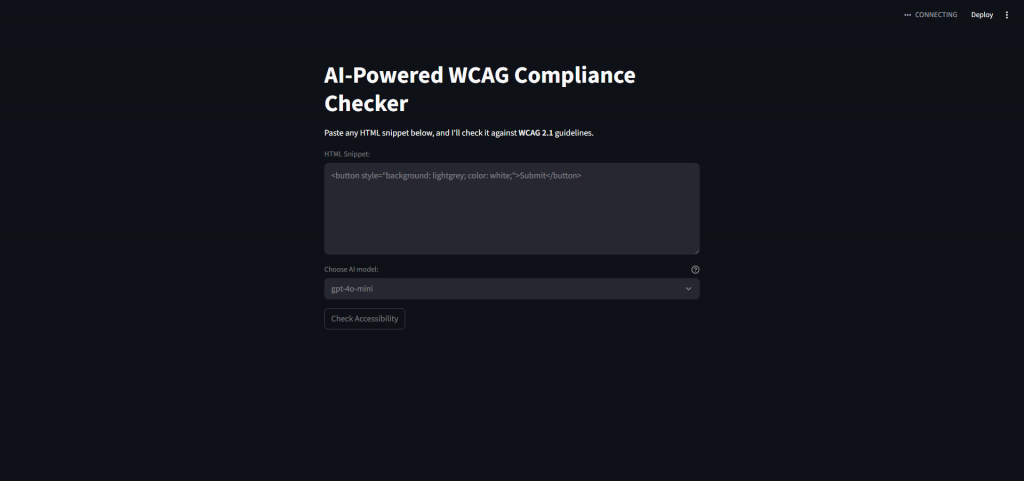
Screenshot Mockup
Here’s a preview of what the interface looks like:
Expected Results from the Checker
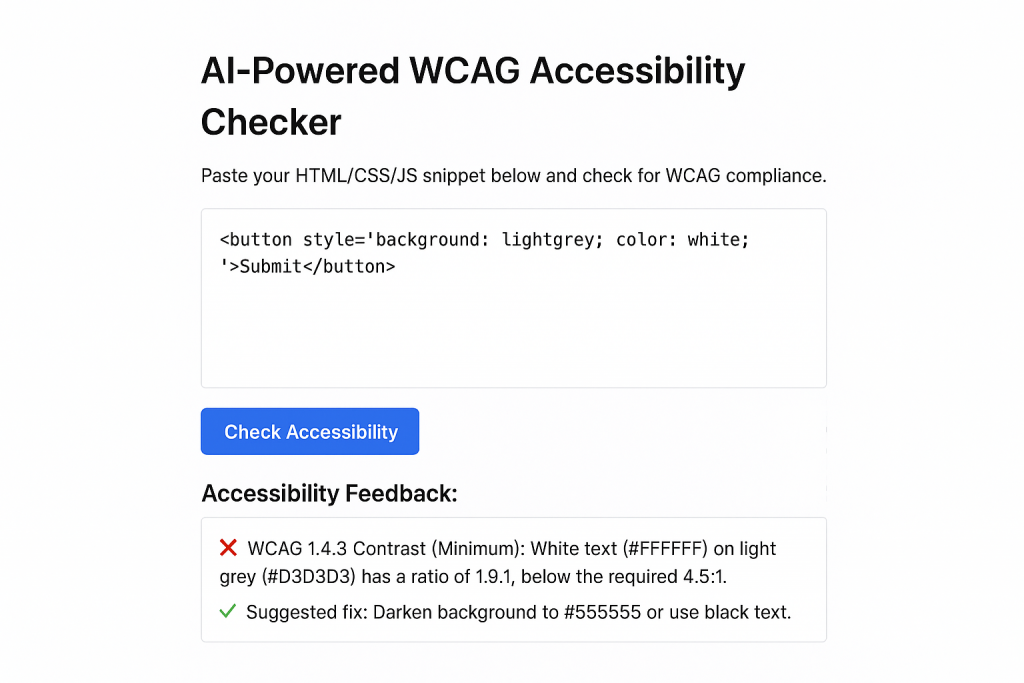
When using the app, you’ll typically see two kinds of results:
- Issues found – Highlighted with ❌, along with the specific WCAG rule that’s being violated.
- Suggested fixes – Highlighted with ✅, making it clear what to change.
For example:
- Missing alt text → “Add descriptive alt text to
<img>.” - Heading structure issue → “Ensure headings follow logical order (H1 > H2 > H3).”
- Keyboard trap → “Ensure all interactive elements can be navigated via keyboard.”
Examples of Good, Bad, and AI Feedback
To make this more practical, here are some examples of what happens when you run different snippets through the AI-powered WCAG checker.
❌ Example: Missing Label on Input
Code Snippet:
<input type="email" placeholder="Enter your email">
AI Feedback (sample result):
Issues Found:
- This input element is missing an associated
<label>.- Relying only on
placeholdertext fails WCAG 2.1 guideline 3.3.2 (Labels or Instructions). Placeholders disappear once the user types, which can create confusion and accessibility issues.Suggested Fix:
Wrap the input in a<label>element or use aforattribute to explicitly associate a label with the input.
Corrected Code:
<label for="email">Email Address:</label>
<input type="email" id="email" name="email">
❌ Example: Icon-Only Button
Code Snippet:
<button>
  <i class="fa fa-search"></i>
</button>
AI Feedback (sample result):
Issues Found:
- This button does not contain any accessible text. Screen readers will announce it only as “button,” which does not convey meaning.
- This fails WCAG 2.1 guideline 1.1.1 (Non-text Content).
Suggested Fix:
Add accessible text using either visible content oraria-label.
Corrected Code:
<button aria-label="Search">
  <i class="fa fa-search"></i>
</button>
✅ Example: Compliant Accessible Button
Code Snippet:
<button type="submit">Search</button>
AI Feedback (sample result):
Result:
- No accessibility issues detected.
- The button has a clear text label (“Search”), which meets WCAG requirements for non-text content.
By including these before-and-after transformations, the app becomes not just a compliance checker but also an educational tool. Developers don’t just see “pass/fail” — they see exactly why their code isn’t compliant and how to fix it.
Benefits of Using AI for WCAG Compliance
- Instant Feedback – Quickly find issues like poor color contrast or missing alt text.
- Teachable Moments – Suggested fixes help developers learn accessibility best practices.
- Time Savings – Great for teams that want to bake accessibility checks into development without relying solely on manual audits.
- Customizable – Extendable to deeper checks like ARIA labels, keyboard navigation, and screen reader compatibility.
Future Enhancements
Some directions this could go:
- Batch analysis of entire codebases.
- Severity ratings (critical, moderate, minor).
- Integration with GitHub Actions for automated compliance checks.
- Support for other compliance frameworks (like Section 508).
Final Thoughts
Accessibility should never be an afterthought. By leveraging AI, we can make it easier for developers to write inclusive, compliant code from the start.
The AI WCAG Checker is just one example of how AI can improve productivity and responsibility in modern software development.
